

Round 4 is running late. The byes deadline is tonight. Awards are right after the final round. Your entrants need to hear it — and tournament announcements reach them directly, whether or not they’re members of your club. They live inside the event, so you’re messaging this tournament’s players, not your whole roster.
Write one
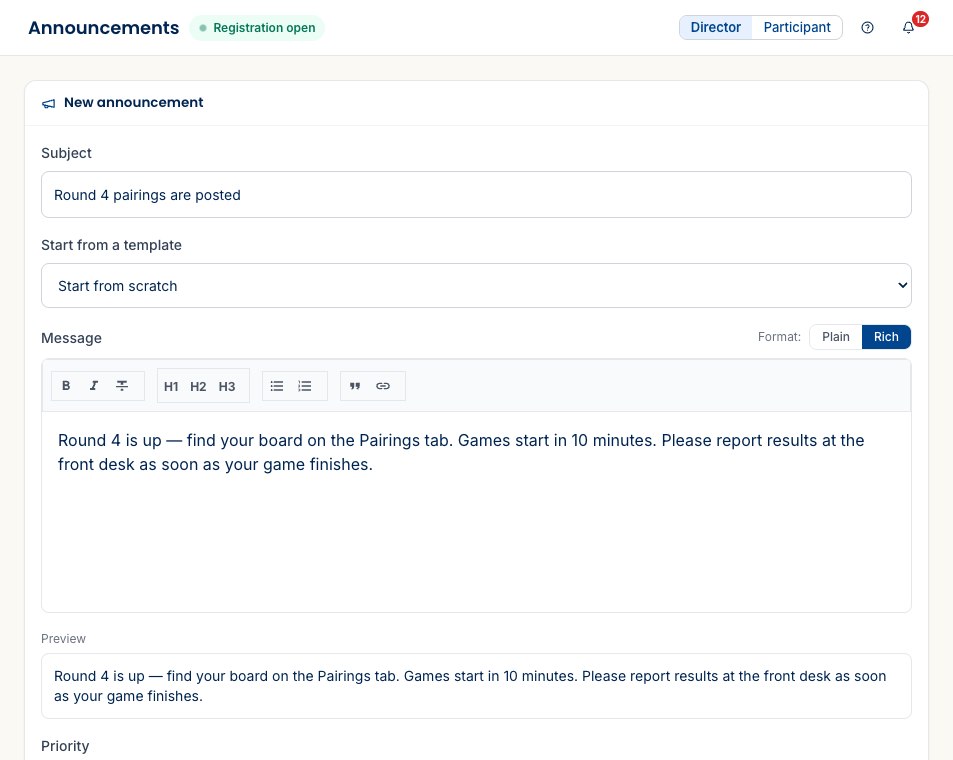
From the tournament director sidebar, open Announcements → New announcement. You get a real composer, not a plain text box:
- Subject — the headline entrants see first.
- Start from a template — pick a common message (round delay, byes reminder, awards) and tweak it, or start from scratch.
- Message — a rich editor (bold, italic, headings, lists, links) with a Plain toggle if you’d rather keep it simple, and a live Preview of exactly what your players will read.
Send it to the right people
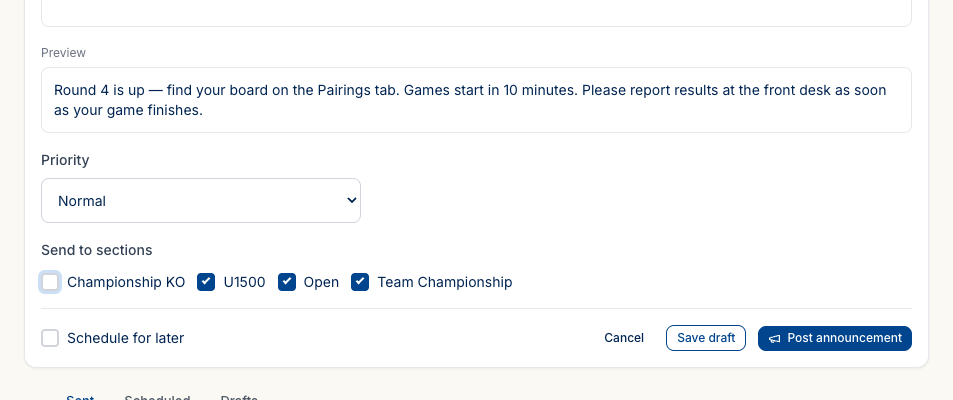
Underneath the message, three controls decide who gets it and when:
- Priority — mark it Normal, High, or Urgent so a genuine “round delayed” stands out from a routine reminder.
- Send to sections — check only the sections that need it. A byes reminder for the U1500 doesn’t have to hit the Open; an awards heads-up can go to everyone. This is the scoping that a club-wide announcement can’t do.
- Schedule for later — send now, or set a time and let it go out on its own (that 7 a.m. “doors open at 8:30” message you’d rather not wake up to send).
Drafts, scheduled, and sent
Not ready to send? Save draft and come back to it. The Announcements page keeps three lists — Sent, Scheduled, and Drafts — so a message you scheduled for Saturday morning or parked as a draft is easy to find and edit. Each sent announcement shows who it went to and how many recipients it reached, and opens to a full detail view of exactly what you posted.
What’s next
- Run your event, round by round — the moments worth announcing: pairings posted, a round delayed, results due.
- What your players see — where entrants read your announcements alongside the live pairings and standings.
Questions? The FAQ and support@rookready.com are here for you.
Updated July 13, 2026