

Every club collects slightly different information. Rook Ready’s default member record covers first name, last name, email, phone, and date of birth — useful everywhere, specific to nobody. Custom Fields let you add the rest: USCF or FIDE ratings, school grade, dietary restrictions, parent contact notes, photo release on file, whatever your club actually tracks. You define the field once in Settings; the value lives on each individual member’s record.
Before you start
Custom Fields are included on every plan. Pawn clubs get up to 5 fields — enough to cover the essentials like USCF rating, school grade, or photo-release status. Rook unlocks unlimited fields if you need to track more.
One thing to set expectations on before you dive in: you’re defining the field here (its name, type, and permissions), not filling in values. Values get set per member from the member edit page once the field exists. Think of this step as adding a new column to your roster — you’re not filling in the cells yet.
Define a custom field
Navigate to Settings → Custom Fields (/settings/custom-fields). Click + Add custom field. A panel slides in from the right.
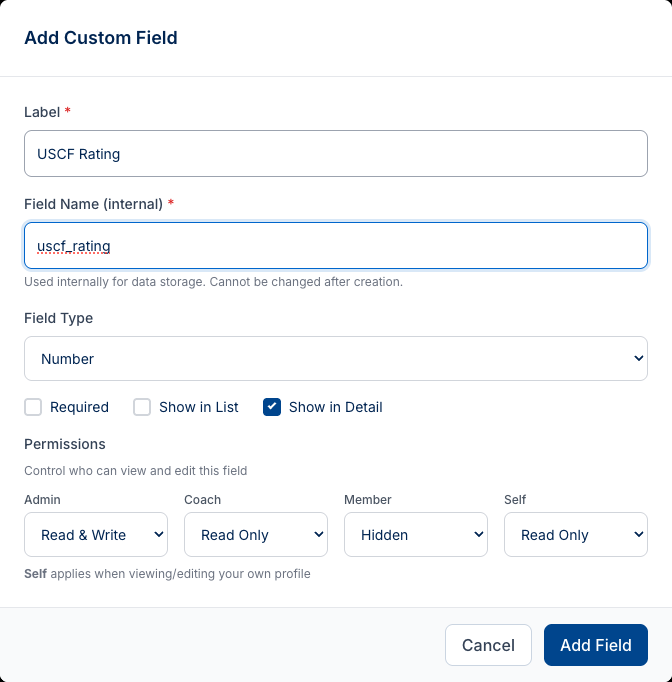
Work through the panel top to bottom:
Label — what admins (and members, if the field is visible to them) see for this field. Use something human-readable: “USCF Rating”, “School Grade”, “Dietary Restrictions”. This can be changed later.
Field Name (internal) — the key Rook uses for CSV imports and form mapping. It does not auto-populate from the Label — you type it manually. Lowercase with underscores by convention: uscf_rating, school_grade, dietary_restrictions.
Field Type — a combobox with six options: Text, Number, Date, Yes/No, Dropdown, Multi-select. For Dropdown and Multi-select, an Options input appears for you to define the available choices. This set is intentionally smaller than the registration form field types — there’s no Email, Phone, or File upload here, since those data points belong on the member record directly or on the form submission itself rather than as structured member attributes. Yes/No is the rough equivalent of the form-builder’s Checkboxes; Multi-select is unique to custom fields.
Visibility, required, and permissions
Below the Field Type are three toggles and a permissions grid.
Required — switched on, the field must be filled when adding or editing a member. Off by default.
Show in Detail — switched on, the field appears on the member’s Overview tab. On by default — most fields you define are worth showing there.
Show in List — switched on, the field becomes a column on /members. Off by default. Useful for quick-scan fields like rating or grade level; avoid it for long text fields that will wrap awkwardly. One caveat from testing: if your field label happens to coincide with the name of an existing system column, you may see it appear on the list regardless of this setting. That’s a labeling collision, not a bug — just something to be aware of when naming fields.
Permissions — a 4 × 4 grid of per-role access. Roles run down the rows (admin, coach, member, self); access levels run across the columns (Read & Write, Write Once, Read Only, Hidden). Defaults are:
| Role | Default |
|---|---|
| Admin | Read & Write |
| Coach | Read Only |
| Member | Hidden |
| Self | Read Only |
Members are Hidden by default — they don’t see custom fields on their own profile unless you explicitly grant access. “Self” is a special role meaning “the person whose profile it is.” Granting Self Read Only lets members see their own data; granting Self Read & Write lets them edit it.
Custom fields on member profiles
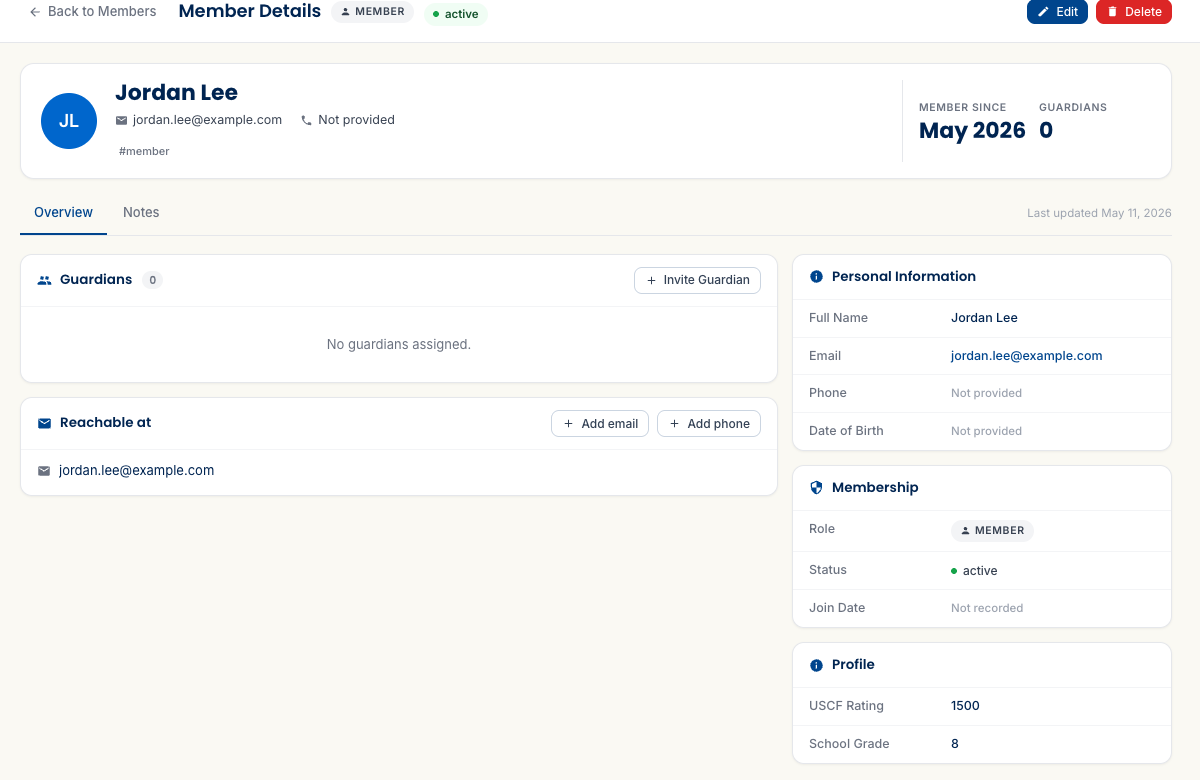
When you open a member’s detail page, custom fields appear in a section called Profile on the Overview tab — below Personal Information and Membership. Values render as label/value pairs (a definition list).
To set or change a value, click Edit on the member detail page. Custom fields appear under an Additional Information heading at the bottom of the edit form. (The naming is inconsistent between views — the detail page calls it “Profile” while the edit form calls it “Additional Information” — but they’re the same fields.) Widgets match the field type: Number gets a spinbutton, Date gets a date picker, Dropdown gets a native select, Yes/No gets a Yes/No select, Text gets a text input. Save to commit.
There’s no inline editing on the detail page — values flow through the Edit page only.
List view: the /members columns
If you switched on Show in List, the field becomes a column on /members. Good for fields you want at-a-glance during roster scanning — rating, grade level, or a yes/no flag like “Photo release on file.” Keep the field labels short so the column headers don’t crowd the table. As noted above, a label that coincides with an existing system column name may cause that column to appear even with Show in List off — keep field names distinct from built-in column names to avoid ambiguity.
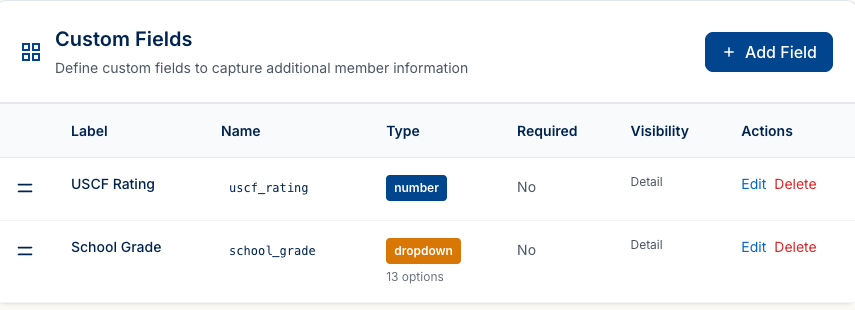
Custom fields appear automatically on registration forms
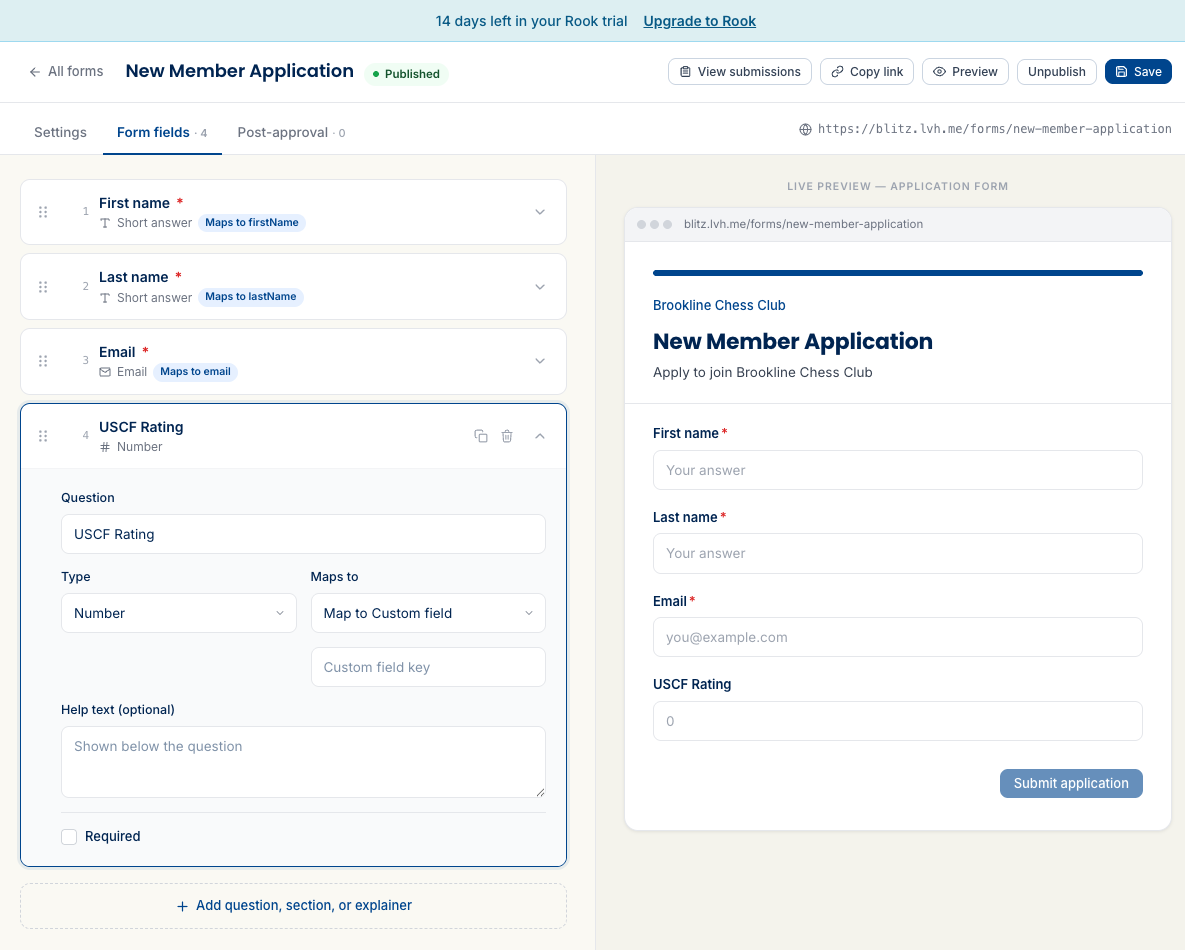
When you create a new custom field, it is automatically added to existing published registration forms — no manual step required. In testing: creating “USCF Rating” caused it to appear as field #4 on the existing “New Member Application” form immediately.
In the form-builder, the auto-added field’s “Maps to” combobox defaults to “Doesn’t map to the member” — but the field’s internal name already aligns with the custom field’s key, so submissions populate the custom field on the new member automatically. If you’re building a new form from scratch, the same combobox lists your already-defined Custom Fields by name under a Custom fields group — pick the one you want; there’s no key to type anywhere in this control. A Create a new custom field option sits at the end of that group if you’d rather define one on the spot instead of picking an existing one.
The Registration Forms guide covers the full form-builder workflow, including field mapping.
Filling custom fields via CSV import
If you’re importing a spreadsheet and want to populate custom fields in bulk, the column-mapping step in the import wizard has you covered. Two options in the target field dropdown:
- Create custom field — define a new custom field mid-import using the column header as the label. It shows up in Settings → Custom Fields afterward, fully editable.
- Map to Custom field — route a column’s values into an existing custom field by matching the column to its internal key.
Both are covered in detail in the Adding Members guide.
What’s next
Custom Fields is the last piece of the roster data puzzle. The two guides that connect back here:
- Adding Members — for batching custom field data into your roster via CSV import.
- Building Registration Forms — for collecting custom field data from prospective members at signup.
If you get stuck, the FAQ has answers to the most common questions, and you can always email support@rookready.com.
Updated September 25, 2026