

Announcements are how you talk to your club outside of events — a welcome message to new members, a venue change, a reminder about dues, a note celebrating a tournament result. Every one of them lands in the member’s Updates inbox in Rook Ready — on the web and in the phone app — so the copy is still there next Tuesday when they go looking for the address of the venue. On Rook, it goes out as an email as well. This guide walks you from blank compose form to sent.
Before you start
Announcements need a roster to send to. If you haven’t added members yet, start with Adding Members — without anyone on the list, there’s no one to reach.
You’ll also need your own email address confirmed. Rook Ready asks you to confirm it when you sign up; until that’s done, you can still build your roster and look around, but you can’t create an announcement.
One thing worth noting upfront: announcements are for communication that isn’t tied to a specific event. Event-specific reminders — practice cancellations, RSVP nudges, post-event recaps tied to attendance — flow more naturally through the event itself (RSVP notifications and event-level communications). Use announcements for club-wide news that stands on its own.
Compose a new announcement
Head to Announcements and click New Announcement to open the compose form. (The compose form lives at a URL you can’t navigate to directly — always reach it through that button.)
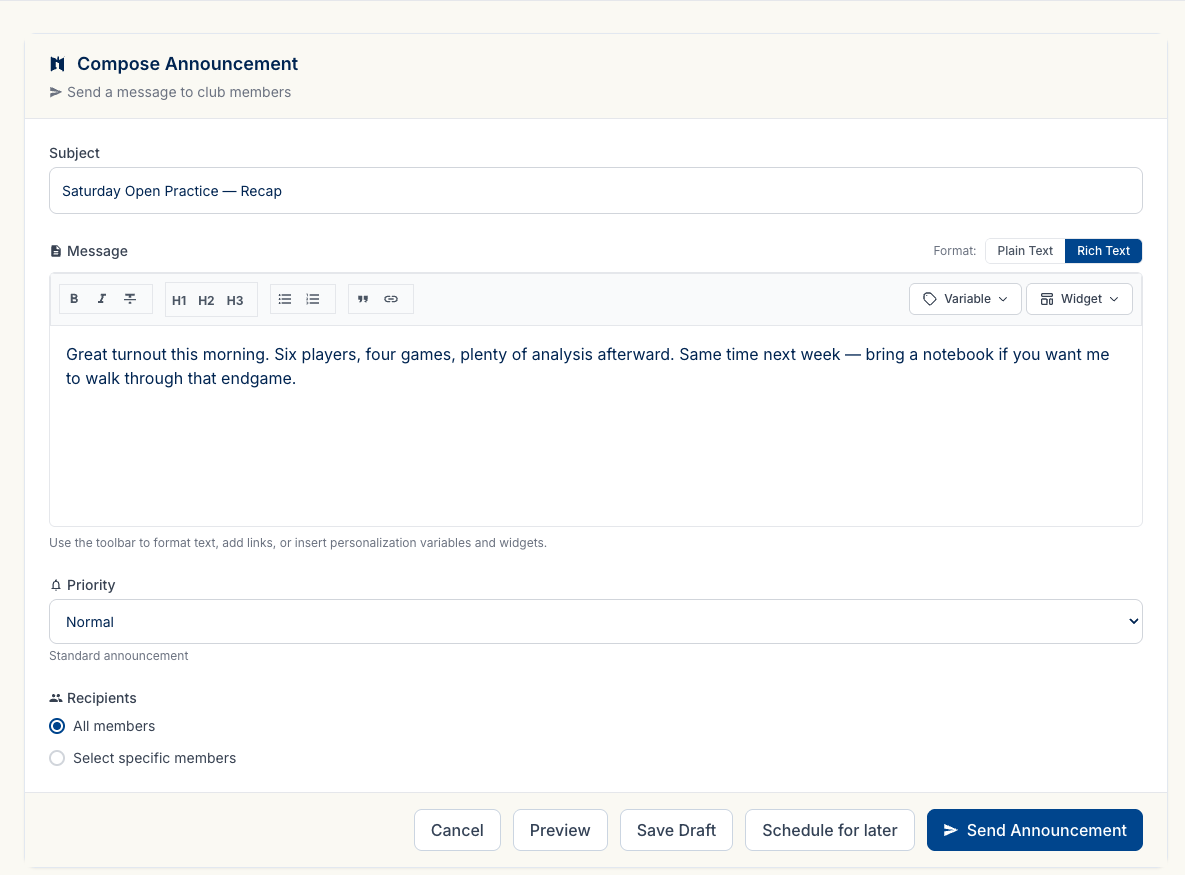
Subject — The email subject line your members will see in their inbox.
Message body — Defaults to Rich Text, with a full formatting toolbar: Bold, Italic, Strikethrough, heading levels (H1/H2/H3), Bullet List, Numbered List, Quote, and Link. If you prefer to work in plain text, the toggle at the top of the message field switches modes.
Priority — Four levels: Low, Normal (the default), High, and Urgent. A sub-label updates as you move the selector — “Standard announcement” for Normal, for instance. High and Urgent are there for things members genuinely need to act on immediately. Don’t burn that signal on routine news; if everything is urgent, nothing is.
Allow replies — A toggle under the priority selector. Switch it on and recipients get a reply box on their copy; their answers come only to you, never to the rest of the list. Worth ticking on anything where the honest response is a question — “are we still on if it snows”, “can my daughter come early” — and worth leaving off on a broadcast you don’t want forty separate answers to.
Pick your audience
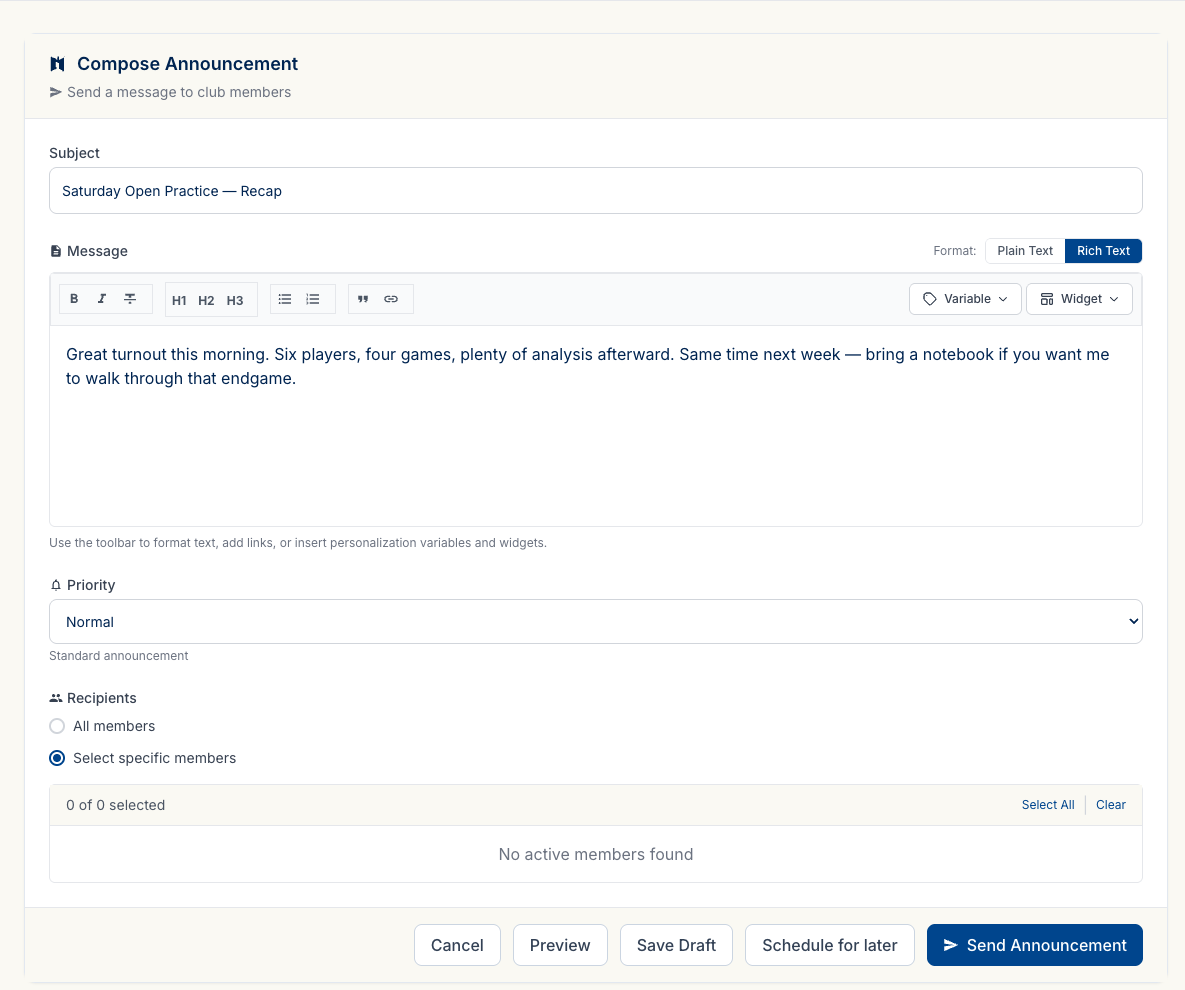
The audience selector has three options:
- All members — sends to everyone on your active roster. The default, and right for most announcements.
- Select specific members — expands to an inline checkbox picker. Check the members you want, use Select All or Clear to manage the list in bulk, and a count updates as you make selections.
- Saved groups — target one or more Member Groups you’ve already built. Selecting more than one group is deduped, so a member in two selected groups still gets the announcement once.
Member Groups — build the audience once, reuse it
If you send to the same custom audience regularly — just the coaches, just the regulars who came to most events this term — build it once as a Member Group instead of cherry-picking through Select specific members every time. Click Manage Groups from the Announcements list (or the same link from inside the audience picker) to create one. A group is one of two kinds:
- Manual list — you pick the members by hand, the same way Select specific members works, but the list is saved under a name and shows up as a Saved groups option on every future announcement.
- Filter — stays current on its own, re-evaluated against your roster every time an announcement sends. Four filter types today:
- Age band — members between a minimum and/or maximum age, computed from birth date.
- Event attendance — members who attended (present or late) at least a set number of events between two dates.
- Status — members whose membership is Active, Inactive, Suspended, Archived, or Left, in any combination.
- Club rating band — members between a minimum and/or maximum club rating. A member with no counted games has no club rating yet and isn’t included, and the dialog warns you if your club rating is turned off.
Groups are built on the web. In the app, the announcement composer can send to any saved group, with the same count of who it reaches.
Either kind shows its current member count wherever it’s listed, so you can see who it reaches before you send.
Schedule for later
If you’re not ready to send immediately, the Schedule for later button in the action bar toggles an inline scheduling panel.
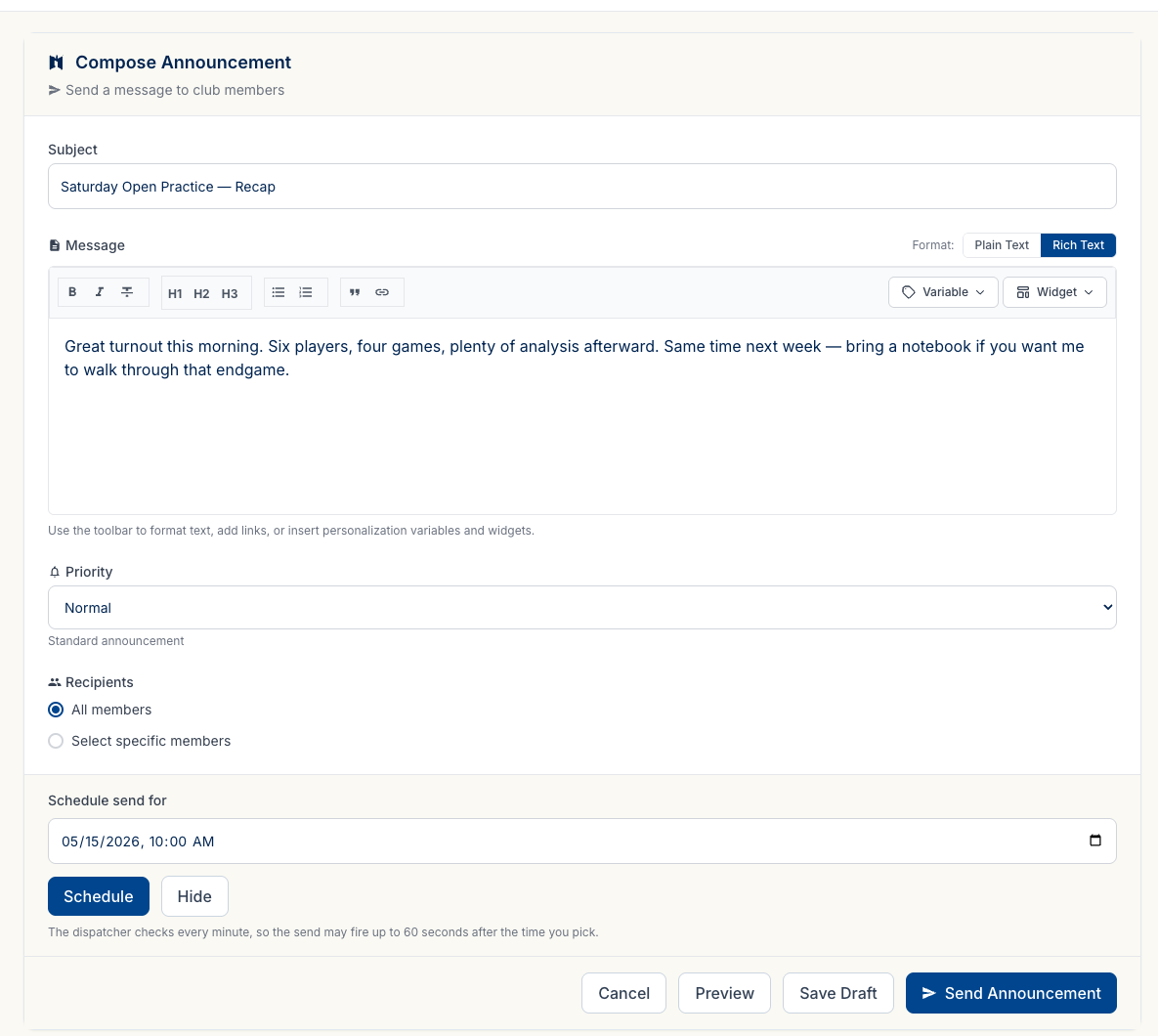
Inside the panel: a Schedule send for datetime input, a Schedule button (disabled until you fill in the date and time), and a Hide button to collapse the panel if you change your mind. A note in the panel reads: “The dispatcher checks every minute, so the send may fire up to 60 seconds after the time you pick.” — honest, and good to know when timing matters.
If you skip scheduling here and click Send Now instead, you’ll get one more chance to schedule inside the confirmation dialog.
Preview and send
Rook Ready uses a two-step send flow — you get a real look at what members will see before anything goes out.
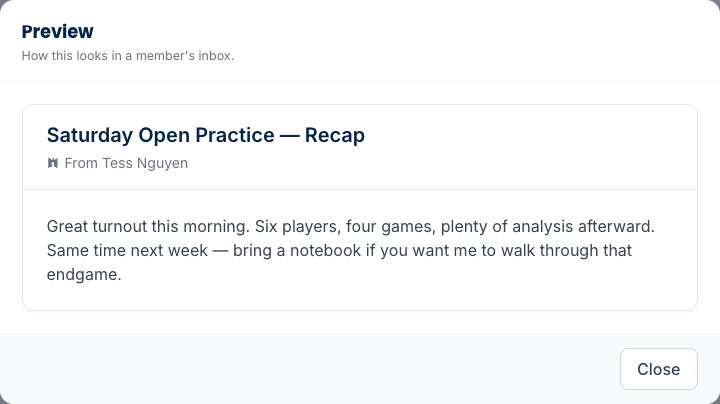
Click Send Now on the compose form → the Preview dialog opens. It shows your announcement rendered as a full email — subject line, formatted body, From attribution (your name). This is the moment to catch formatting issues, a stray variable that didn’t fill in, or a subject line you want to tighten.
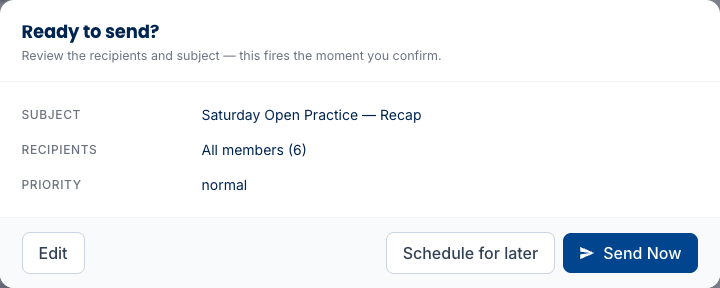
From Preview, click Send → the Confirmation dialog opens. It summarizes the announcement: Subject, Recipients (count), and Priority. From here you either commit with Send Now or, if you’ve changed your mind about timing, there’s a Schedule for later option here too — a second escape hatch into the scheduling panel.
Two dialogs before anything goes out means you have real chances to catch a mistake. Use the preview step; it takes five seconds.
Templates (Rook plan)
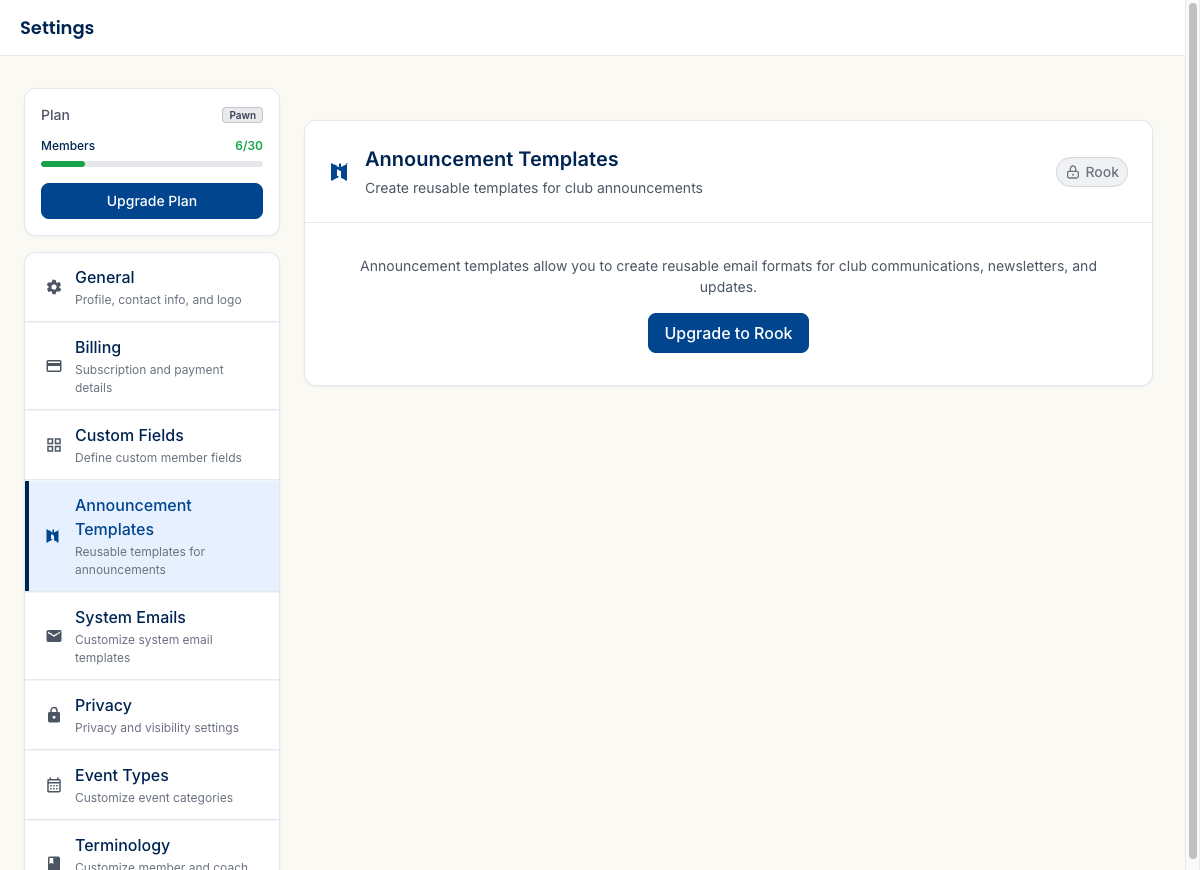
Announcement templates let you create reusable email formats for club communications, newsletters, and updates — a format you can reach for instead of rebuilding from scratch each time. Every template your club uses, announcement or otherwise, is listed at Settings → Email Templates.
On the Pawn plan, the page is locked with an Upgrade to Rook CTA. On Rook, templates are available to create and reuse from the compose form. If you’re on Pawn and considering the upgrade, this is one of the features that adds up for clubs that send regular structured communications.
Review what you’ve sent
There are two sides to this, and they’re worth keeping straight.
Updates (/announcements) is the receiving side — one inbox holding everything anyone has sent you, club announcements and messages from a tournament director alike, newest first and across every club you belong to, not just this one. Unread rows carry a count at the top, there’s a Mark all read for the week you let it pile up, and an Archived tab for the ones you’ve dealt with. Where the sender allowed replies, a reply box opens right there on the row; where they marked it High or Urgent, an acknowledge bar sits on it until you press the button. As an admin your own Updates stays quiet, because you’re the sender rather than a recipient; your members are the ones who live here. The same merged list is in the phone app, which is where most of them will actually read it — the app shows the feed and the unread count; the archiving, the acknowledge button and the reply box are web.
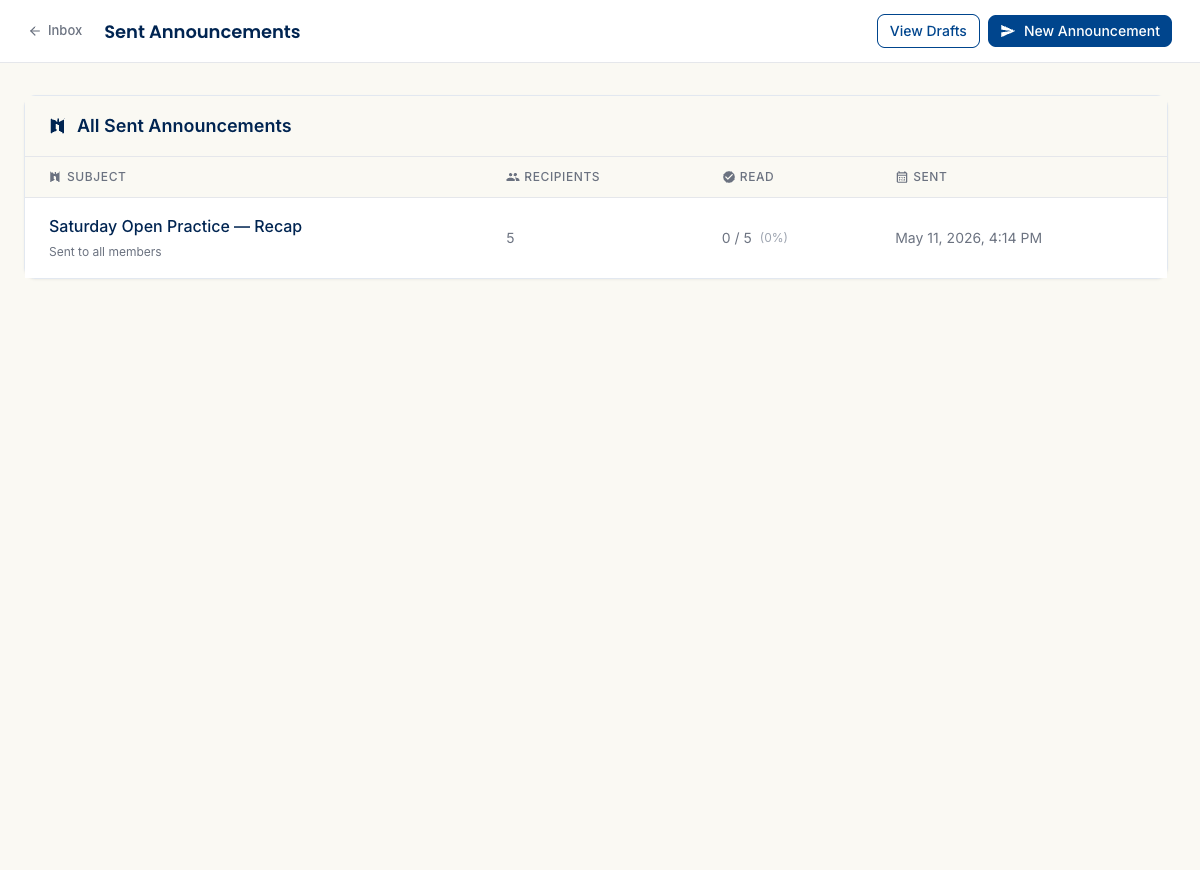
Sent (/announcements/sent) is the sending side, reached from View Sent, with three tabs of its own:
- Sent — every announcement that has gone out, in a table showing Subject, Recipients, Read (n/total and a percentage), Acknowledged, and the send date and time.
- Drafts — saved but unsent.
- Scheduled — queued for a future send time.
Two columns there earn their keep. Read tracks how many recipients opened it, which tells you whether a message landed. Acknowledged is stronger than opened — it counts the people who pressed a button to confirm they’d seen it. Rook Ready asks for that confirmation on High and Urgent announcements, which is the real reason to reach for those priorities: not to shout, but to get a count you can act on when “I never got that” would be a problem. Normal-priority announcements show a dash in that column, because nobody was asked.
What’s next
Announcements work best when the roster behind them is solid:
- Add your members — no roster means no one to reach. Manual entry, CSV import, or invitations all work.
- Record attendance — announcements pair well as event follow-ups. Send a recap or a “thanks for coming” after recording who showed up.
- Announcing to tournament entrants — running an event? Tournament announcements reach the people entered in it (members or not), scoped to specific sections — separate from these club-wide ones.
If you get stuck, the FAQ has answers to the most common questions, and you can always email support@rookready.com.
Updated September 29, 2026